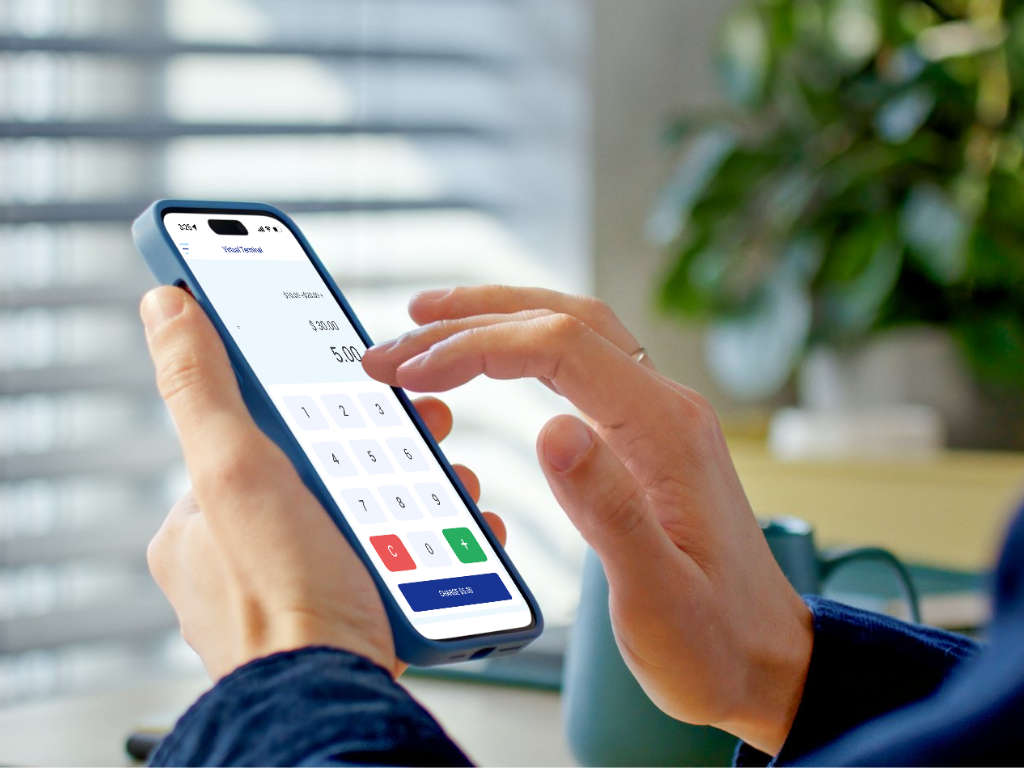
How to Take a Payment Using the SaleQuick Virtual Terminal
Whether you’re taking payments over the phone, on the go, or away from a traditional POS, the SaleQuick Virtual Terminal makes it easy to accept payments securely in just a few steps. This guide walks you through exactly how to process a payment from start to finish.
Before You Start
Before processing a payment, make sure:
- You’re logged into the SaleQuick app
- The app remains open on your POS screen during use
Step 1: Log In
- Open the SaleQuick app
- Log in using your email and password
Once logged in, you’re ready to take payments
Step 2: Enter the Sale Amount
- On the POS screen, type in the amount you’re charging
- Tap Charge
Step 3: Confirm the Total & Choose a Payment Method
You’ll be redirected to a screen showing the transaction total and payment options:
- Card Entry
- Cash
- Check
- Other
✔️ Good to know: Even if you’re not taking a card payment, you can still track cash and check transactions inside the system for cleaner reporting.
Step 4: Process a Card Payment
If the customer is paying by card:
- Tap Card Entry
- Choose how to enter the card details:
- Scan the card using the device camera (partial scan), or
- Manually enter the full card information
If scanning the card, you’ll still need to enter:
- Name on Card
- ZIP Code
- CVV
⚠️ Important: Always double-check all card details before moving forward
3. Tap Pay Now (the blue button at the bottom of the screen)
Step 5: Approval or Decline
- If approved:
- A Signature Screen will appear
- Have the customer sign, then tap Done
- If declined:
- You’ll see a decline message with the reason and an error code
Step 6: Send a Receipt (or Skip It)
Once the payment is complete, choose how to send the receipt:
- Text → Enter phone number → Tap Send
- Email → Enter email address → Tap Send
- No Receipt
Step 7: Start a New Sale
On the Payment Complete screen:
- Tap New Sale
- You’ll be taken back to the original POS screen, ready for the next transaction
Why Merchants Love the Virtual Terminal
The SaleQuick Virtual Terminal is perfect for:
- Mobile and service-based businesses
- Phone or invoice payments
- Fast, secure transactions without extra hardware
If you ever need help or want to explore more features, our support team is always here to help. 👉 Ready to take payments faster? Log in and try your next transaction with the Virtual Terminal today.